Sunday, January 26, 2014

Evolving - Analog to Digital

It started with re-organizing the garage. Over the Christmas break, I happened to sell my 1904 Beckwith Reed Organ to a couple of young musicians who are going to put it into a historic house in L.A. along with a lot of other instruments to make a funky space for musicians to gather and play. That happy event opened quite a bit of room in the garage, and so the organizing began.

As part of that, I came across a couple of boxes of old cassette tapes I have been carting around. Occasionally I'd play Pieces of Eight by Styx or whatnot while in the garage since I have a portable radio / tape player on my workbench. But most of these I have not listened to in 2 decades since getting a state-of-the-art JVC CD player in 1982. What to do?

My First CD Player!
I realize digitizing analog is not a new venture, but I had never done it, being a huge fan of vinyl I had not seen the need to convert my records. And I have hundreds of those, so the task was daunting . . . a non-starter.

But the tapes! Sure I had some commercial stuff and a whole row of Windham Hill stuff, but the treasure was the personal recordings. My precocious daughter reading stories at 3, love recording of my playing my folk songs, some lecture I had given on Practical Project Management. This was the irreplaceable stuff that I wanted to save from the ravages of magnetic deterioration.

So I took down the old dusty Kenwood KX77-CW tape deck I got from my brother Greg (RIP - see the guy in the cap!) and set to work figuring out the best and most efficient process for turning lead (er, Chromium) into gold!

Connecting up is straightforward, just get the RCA out into the "line in" of the computer. Here is a lot more about that. Next, a clean tape player is essential so check out this extensive tutorial. Don't drink the isopropyl alcohol! The best software I found was Audacity. It is open source and has tons of features. I wanted to make MP3 files for upload into my Google Play account, so I also got the MP3 plug-in for Audacity which is called LAME. After the hardware is plugged in and the software is setup, I was ready to rip!
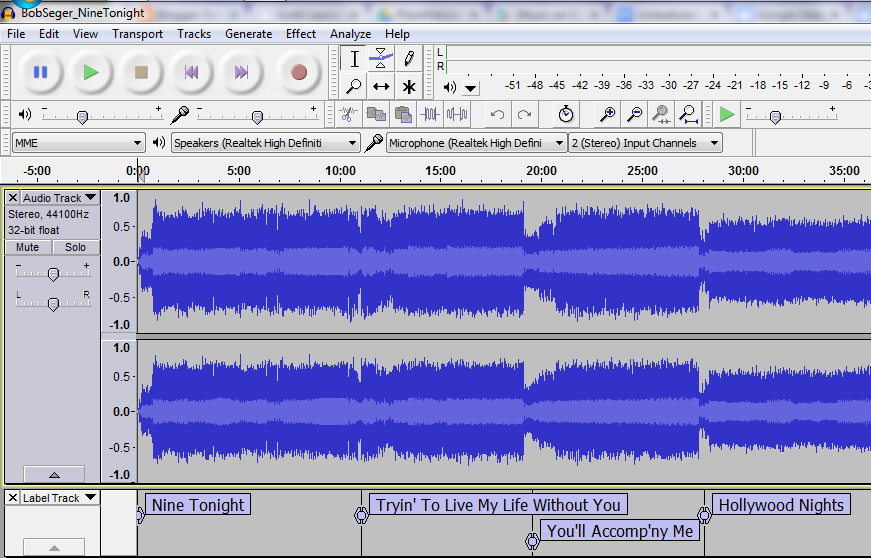
Audacity on Windows - Bob Seger Live Album, "Nine Tonight:
It all boils down to opening a new Audacity file, pressing play on your tape deck and clicking record in Audacity. After the tape is copied into the computer you can then make it ready for its digital life which involves a basic clean up, adding metadata, putting labels at the beginning of each song, and then saving the songs off as a batch. Below I have a list of what I did (on Microsoft Windows) for each tape to go from almost obsolete to all-digital awesome!

  1. Start Audacity and press play on the tape deck. Turn on monitoring in Audacity so you can hear your cassette playing.
  2. Set audio levels to peak just under -6 db so you get all the sound but no distortion.
  3. To do a whole album from tape set the player to auto reverse.
  4. Press play on tape player and then press record in Audacity.
  5. You can listen along or go a do something else until the tape is fully played and recorded.
  6. Save basic metadata of the artist name, album title, year, and genre.
  7. Save your file as a Project (as an AUP file) to allow editing later. Remember to save the project as you go along!
  8. Export the raw audio as a WAV file for an uncompressed backup just in case!
  9. Select a few seconds of 'silence' at the beginning and choose Effect > Noise Removal
  10. Click the Get Noise Sample button in the Noise Removal dialog box. The dialog will close.
  11. Press CTRL + A to select all of the audio.
  12. Choose Effect > Noise Removal, accept the defaults, and click OK.
  13. Wait for the noise to be removed. This will take a few minutes
  14. Press CTRL + A to select all of the audio again.
  15. Click Effect > Normalize, accept the defaults and click OK.
  16. Wait for the audio to be "normalized". This makes the sound as loud as possible so you don;t have to crank your volume when listening to your new digital file. Normalization will also take a few minutes.
  17. Zoom out on timeline and delete and 'silence' you do not want in there. Carefully place you cursor at the beginning of each song, press CTRL + B to add a label.
  18. Type in the name of the track. Repeat for each track. If you don't have the details, Wikipedia is great for getting the exact names of tracks and details your old tape might not have.
  19. Once you have the file the way you want it, choose File > Export Multiple. This will step through your file and create individual MP3 files for each song, titled with your labels. Make sure you create a folder with the name of the artist first and the album under it (which is what iTunes and Google Music likes) to have you music neatly organized.
  20. The final step is to add/upload the folder with your new digital files to your music player like iTunes or Windows Media Player or Google Play.
There can be a lot more you can do and read about, but for me, simply getting a "lost" tape into digital format is perfect. I use Google Play and after upload, I can get in my car, and use my android phone with 3G and Bluetooth connections pulling the music from Google Play I can listen to old "tapes" in my new car. 

And they sound groovy, man!


Monday, December 30, 2013

Talking Glass

Since being selected as a Google Glass Explorer in June, I have had a lot of fun learning about Glass, wearable technology, privacy, modern programming, security, rapid design iteration, and celebrity. Wait . . .  celebrity?!?

Glass gives back what you put in and when I have stepped out, evangelist-like, people's interest and enthusiasm has followed. From a 94-year old acquaintance telling his friends about me and my 'gadget glasses', to random people in public engaging me to ask questions and ask for a try, to the planned out events I have listed below, people are curious, engaged, and excited about the slice of the future which Google Glass displays.

As my journey continues (I get to swap my Glass out for the next version next week!), I can see that more and more people will come to understand that this is about getting technology out of the way so it can truly assist us be more in touch with the world and with those around us. Check out these presentations and interviews about Glass . . . enjoy!

Streaming Media West 2013 - Session C103 - Using Google Glass to Capture and Publish Videos

Interview with Eric Schumacher-Rasmussen, Almost LIVE

Mediasite Webcast - Consumer Video in the Enterprise

Tuesday, December 10, 2013

Google Glass + Mediasite: Consumer Video in the Enterprise

Today I gave a live webinar at Sonic Foundry in Madison, WI that discussed how to use a consumer device, in this case Google Glass in the corporate setting. I am told that we had 500+ people watch live and you can check it out, too! Let me know what you think in the comments.

Here is what was discussed:
  • How the Google Glass + Mediasite integration could help large organizations communicate.
  • The revolutionary impact the first-person point of view will have on education, training and communication.
  • How Glass could provide hands-on learning with detailed demonstrations and labs.
  • A step-by-step demo on how to get Glass video into a corporate video management platform.
Check out the slides and Mediasite Catalog that contains the test videos.

Enjoy!


Tuesday, November 19, 2013

How To Capture and Publish Videos with Google Glass

Today, November 19, 2013, I presented a session (C103) at the Streaming Media West conference that showed how to use Google Glass to capture videos for the corporate or enterprise environment and automatically publish them to a corporate server for employee use. The aim of my talk and demonstration was to show how the new form factor of Google Glass, a wearable computer can remove barriers for the regular employee to create and publish video information for corporate use.

On my website, I have posted the slides today and will link the recorded presentation when it is made available to me. And here is the Mediasite Catalog that contains the test videos.
Enjoy!


Monday, November 11, 2013

Pick Only 3! - Results of My Own #ifihadglass Contest

Whew, the response was great! Two weeks ago, I was informed by Google Glass team that I could invite three more people to become Glass Explorers. I wanted to make the invites count, so I offered them up, not for sale on eBay like some, but through a personal #ifihadglass contest.

In a previous post I asked people to submit their ideas but gave them a lot of space to explain "Why do you want Glass and what will you do?"

I expected only a handful of responses because I do not have tons of followers. But to my surprise I received over 90 submissions! All of high quality and from near and far. After a long process of elimination and discernment, I decided to pick 3 that showed originality, creativity, sincerity, and impact to the community. I also wanted each of the selections to represent a different use case. Since I received a lot of ideas to apply Glass to issues of physical ability, I wanted to pick one. Since I got more than a dozen requests from young programmers with apps and tech projects already underway, I wanted to pick one of those. And I got scores of entries from regular users who simply wanted to share their world #throughglass; I picked one.

And the winners are these three fine folks:

+Chris Binkowski and his Accessibility For Humanity project
+Andrew Bartow the young programmer of Locatr: Find My Phone Free
+Michelle C. Torres-Grant a talented and photographer and foodie.

In future posts I will highlight these winners, their ideas, and follow their progress into the world of Glass. The opportunity that +Google Glass offered me (and all Explorers) re-energized me to the possibilities of Glass. My only regret was not being able to invite all people who submitted their desires & dreams.

Tuesday, October 29, 2013

Want Google Glass? I have 3 invites to give!

In late October 2013, Google announced that they were again expanding the Glass Explorers program and releasing the second version of the Glass hardware (or Glass 2.0 as some, here, here, and here have called it). For current Glass Explorers, we can swap out our original units for the new set which are reported to have prescription frame capability (I need that!) and an optional mono ear bud. Better seeing and better hearing, yay!

Along with that good news for the current 8,000 explorers, they are asking us to invite three more people into the program. That will be a potential of +30,000 Glass Explorers roaming around! This will expand the field trial and gain some great feedback for Google to improve prior to launching to the public in 2014.

So, while I have had a handful of people ask me for an invite already, I thought I'd pause and hold a little #ifihadglass contest of my own.

If you are interested, fill out my form by November 8 and give me the one reason why YOU should be able to buy Glass.

Remember, this is not a giveaway, but the same terms that all Explorers have so let me know in your entry that you are really going to use the invite. Glass is fun and a challenge to all to see the world and computing in a different light. I hope you make the choice to get one. I am glad I did!


Monday, October 28, 2013

Google Glass at Streaming Media West


If you are in Southern California mid-November, come and check out my talk on Google Glass at Streaming Media West conference. It is at the Hyatt Regency in Huntington Beach on November 19 at 1:45 PM. 

The description is below, but I hope (may the demo gods allow!) to show a live example of recording a video, uploading it and publishing it to our Mediasite corporate streaming server. I'll talk about Google Glass and the uses it can have in industry (doing actual work!) and the services you need to set this up for yourself. Here are the details:

Session C103, Nov. 19, 1:45 PM
HOW TO: Using Google Glass to Capture and Publish Videos
Google Glass can make the creation of video content for business, education, and entertainment easy for all people who want to communicate simply and quickly. This presentation looks at Glass and its capabilities, discusses the best practices for capturing content, explores example real-world uses, and details the steps for setting up sharing. Attendees see a live demo of the workflow from recording to publishing right in the session.
See you there!